User Guide: How to Add a New Asset type Payment device
This guide outlines the steps required to access the Asset Register and create a new asset within the system.
Step 1: Access the Asset Register
Navigate to Menu > Assessments > Asset Register Overview.
Click the red button labeled Access Asset Register. (See Image 1 for reference)
Once inside the register, click on the Add Asset button. (See Image 2 for reference)
Step 2: Create a New Asset
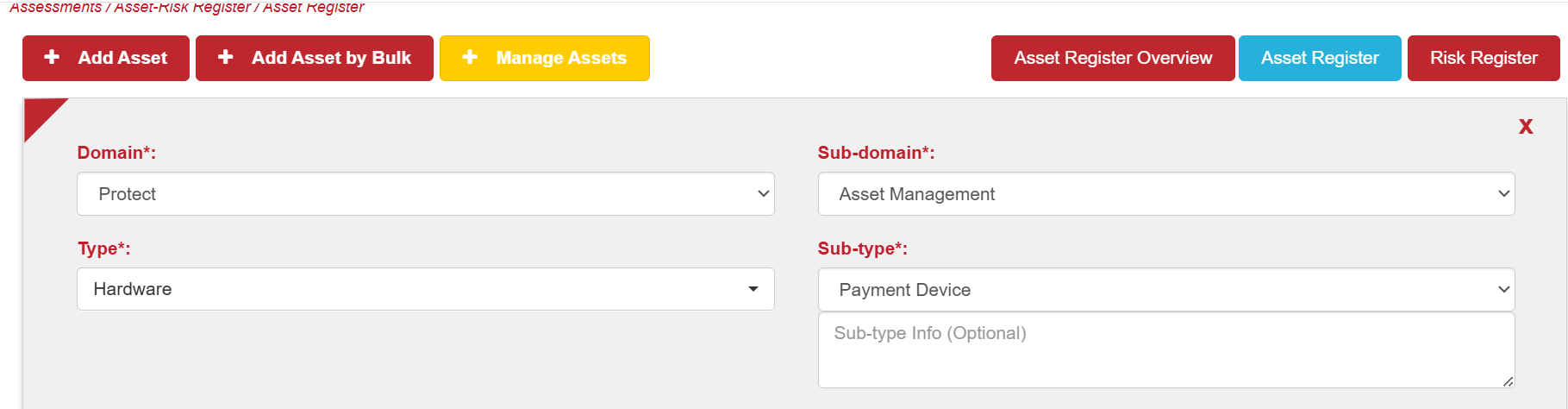
In the asset creation form, select the following options from the dropdowns: (See Image 3 for reference)
Domain:
ProtectSub-domain:
Asset ManagementType:
HardwareSub-type:
Payment device
Complete all mandatory fields in the form. These are typically marked with an asterisk (*).
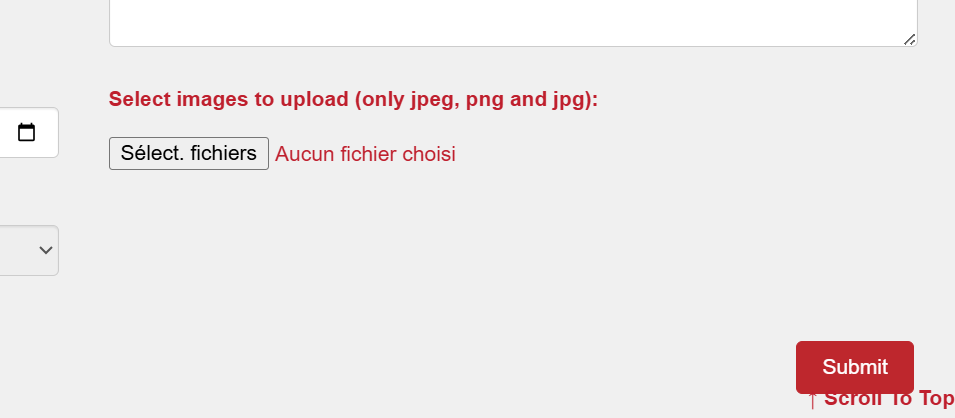
Upload image(s) related to the asset:
Click on the image upload field.
To upload multiple images at once, hold the Shift key while selecting the images from your computer.
(See Images 4 and 5 for reference)
Tips
Ensure all details entered are accurate to maintain asset register integrity.
Use high-quality images for better recordkeeping.
If you encounter issues, contact your system administrator or support team.